You can upload your own signals and access them in any formula for screening, ranking and backtesting. Each factor is independently managed and updated. Each data-point consists of date, stock id, and value.
Use Cases
Import an ETF’s historical holdings (by assigning the value 1 to held tickers), the executive compensation of companies, or alternative data sources for adjusted EBITDA if you can get it. You can upload the historical Zacks ranks of companies (if you can get that) to see how well they’d backtest. If you can get satellite images of parking lots, you can upload the number of shoppers visiting public retail companies.
Imported Factors Properties:
You can use them in any formula for screening, ranking and buy/sell rules.
They are listed in the reference section on the website for easy access.
You can share your factors in a group with others.
The most recent value is used from the analysis date (or as-of-date)
You can set a maximum age for a factor so that old values become N/A
Create Your Factors
You can manage your factors on the website or by using our API or Python wrapper. See this article API functions: Stock Factors for ready to run examples.
Using the website go to Research→Imported Factors, click New and enter the settings.
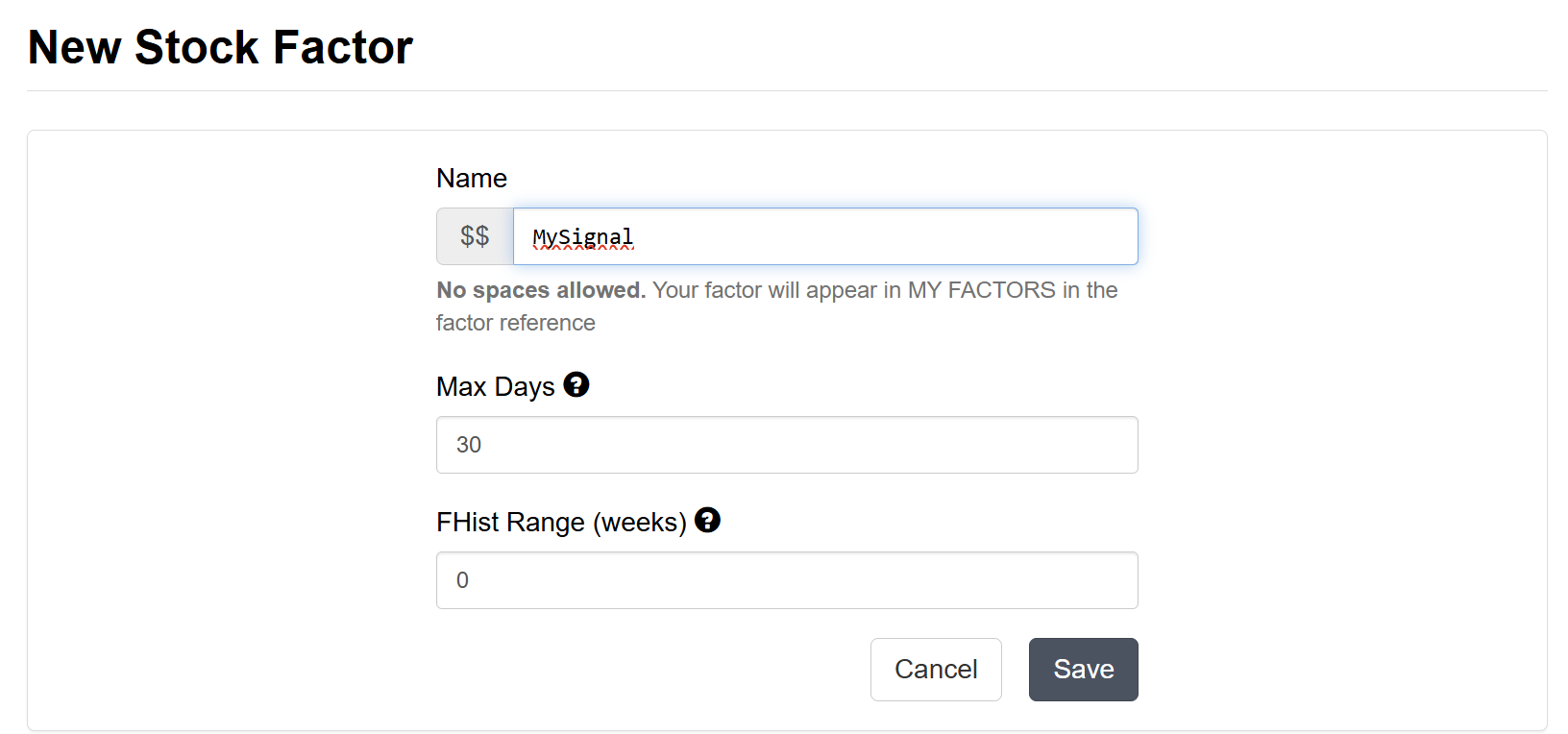
NOTE: Use the smallest possible numbers that you need to make loading of the factor faster during analysis. For example if you do not use FHist() to access your factor set the FHist Range to 0 to load less data.
Data Limits
Imported Factors are not designed for "big data". There's a hard limit for each account of 100M data points in total. We are working on solutions to allow you to import large datasets including linking your cloud datasets (like Snowflake) for unlimited number of data points.
Import Your Data
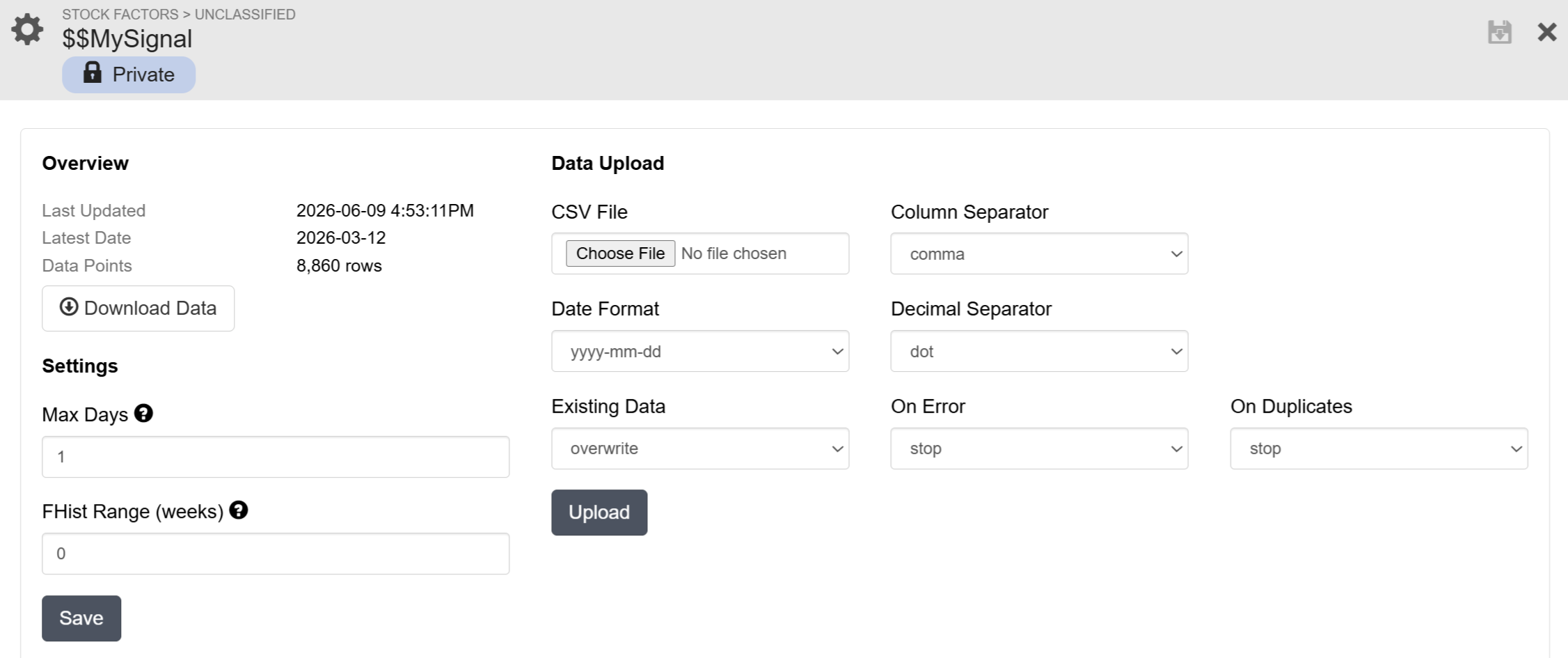
Once a factor is created you will see the page below that lets you upload the data (for large files we recommend using the API functions).
Data format:
CSV file should have three columns, with headers, containing dates, keys, and values.
Column Separator: choose the one matching your file; comma, semicolon and tab supported
Following are the acceptable values for the header row,
date – for the date column.
value – for the value column.
id/ticker/gvkey/FIGI/CIK – for the key column.
Date column: use any date format available in the Date Format dropdown.
Value column: must be a valid number (both dot and comma decimal separators supported via Decimal Separator dropdown); case-insensitive matches of NA, NaN, and NULL will be treated as NA.
Key column: must specify either a Portfolio123 StockID, current ticker, GVKey, current FIGI, or CIK, matching the identification specified in the header.
Anything specified after the third column will be ignored.
Options for handling errors and duplicates in Data Series and Stock Factor CSV files:
Existing Data
overwrite – use uploaded value if data point matches a previously stored one
skip – skip uploaded data point if it matches a previously stored one
delete – delete previously stored data points
On Error: use continue if you want to ignore rows with errors
On Duplicates: use continue if you want to ignore duplicate (same date) rows; last occurring duplicate row's value will be used
If you’re using old tickers, you may get an error message. You can search for the new ticker for a company by putting the company name into the Advanced Stock Search.